🚀Getting started
Your family is ready in 5 minutes. This is how it all begins.
1. Install and sign in
- Install the app (Android, from Google Play) or open the web version (iPhone and computer). While we are testing, follow the tester steps first.
- Tap Continue with Google or Continue with Microsoft. No new passwords to remember.
- Mom or dad: tap Create my family, give it a name and accept the privacy policy. You become the admin.
- Kids and the other parent: tap I have an invitation code, type the 6-letter code you received and tap Join the family.
2. Take the guided tour
The first time, the app gives you a spotlight tour of every screen. Replay it any time from My account → Take the app tour.
✅My setup progress PARENTS
Check each step when you finish it. Your progress is saved in this browser.
0 of 8 steps
🪄Setup wizard PARENTS
When you create your family, the wizard guides you through 4 screens.
- Who are your kids? Type each one’s name and age. Age is used to suggest chores and to share the load by what each one can do.
- Suggested chores. Pick the ones you want from the list by age; you can edit them later.
- Suggested rewards. Choose rewards like “Pick Friday’s movie” or “Ice cream outing”.
- Codes. You get a code for each kid. Send it on WhatsApp with the Share button.
👨👩👧👦Family and invitations PARENTS
Family tab: who is in, their roles and their details.
Invite a kid or the other parent
- Go to Family → Invite.
- Choose the role: Kid or Parent. For kids, add their date of birth.
- Share the 6-letter code (WhatsApp, SMS or any way you like).
- They install the app, sign in and type the code. Done! If there are chores already, the week is drawn again to include them.
Each member’s menu (tap them in the list)
- Age and capacity: the load is shared by age (60% at 7, +8% per year, 100% from 12) or a manual value.
- Class schedule and Absences: see Absences, schedules and custody.
- Gift points to their piggy bank and Pay allowance.
- Sign them out on all their devices (if they lost their phone).
- Remove from family. The admin can also transfer the admin role.
Roles: who can do what?
| Admin | Parent | Kid | |
|---|---|---|---|
| Create and edit chores, rewards and settings | ✅ | ✅ | — |
| Approve or decline proof | ✅ | ✅ | — |
| Invite and remove members | ✅ | ✅ (kids) | — |
| Start and submit their chores | — | — | ✅ |
| Redeem rewards, ask for swaps, “I can't today” | — | — | ✅ |
Temporary guest (a cousin staying for a few days)
📝Creating chores PARENTS
Chores tab → New chore, or from Suggested chores.
Step by step
- Name and points. E.g. “Wash the dishes”, 4 pts. The app suggests points based on difficulty.
- Type (who does it): daily rotating, weekly rotating, fixed to one kid or shared. Not sure? Use the helper below.
- Days: All, Mon to Fri or the ones you choose. “Daily” simply means choosing All.
- Times: one or more per day (e.g. feed the dog at 07:00 and 19:00). Each time is a separate chore with its own photo and reminder.
- Optional: minimum age, steps to check, season, example photo “this is how it should look”.
- Tap Save. It joins the next draw (or draw now in Week).
🧭 Helper: which chore type should I pick?
Chore types in detail
- Daily rotating: a different kid each day. With In shifts, each time goes to a different kid and the shifts rotate.
- Weekly rotating: one kid does every day of that chore during the week; the next week it rotates to whoever did it least.
- Fixed to one kid: always the same person on the chosen days.
- Shared: done by everyone at home, or N who take turns. Each one has their own copy and earns the full points; one photo counts for all.
Advanced options: minimum age, steps, season and example photo
- Minimum age: younger kids are left out of the draw (e.g. clean the bathroom from age 10).
- Steps: the kid must check them all before sending the after photo (e.g. toilet, sink, mirror, floor).
- Season: only drawn between those dates every year (e.g. rake leaves in autumn).
- Example photo: the kid sees it in the details to know how it should look.
Fair points (automatic suggestions)
Cancel a chore that was already drawn
🎲Draw and week PARENTS
The app shares the chores fairly. You decide when.
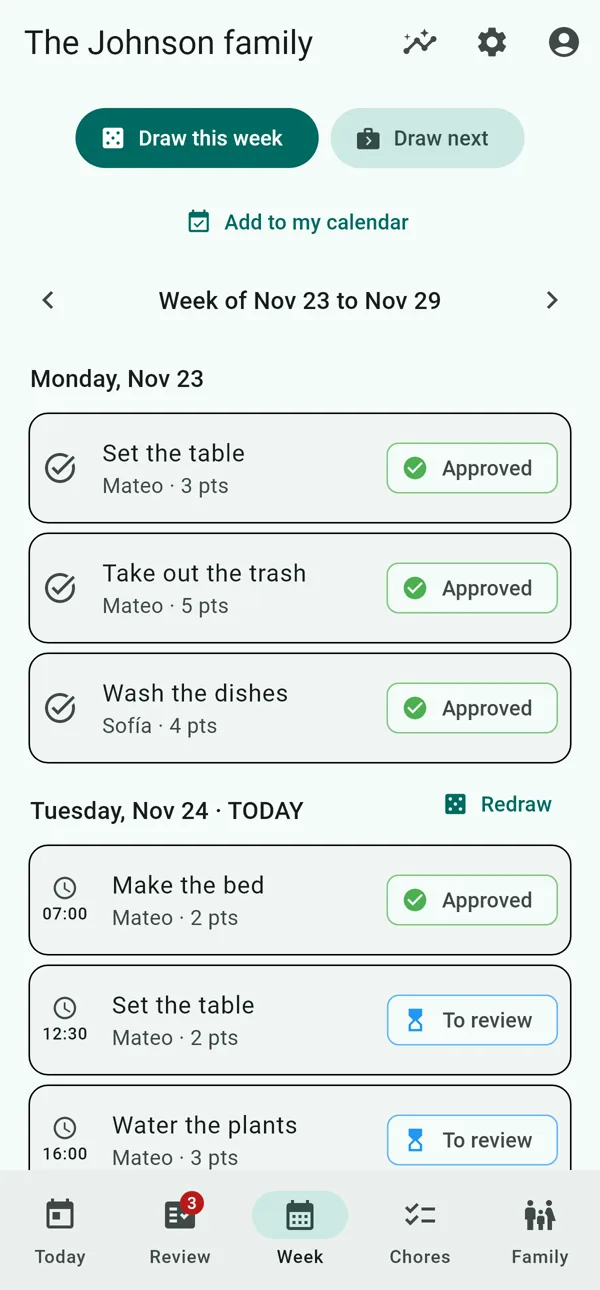
- Go to Week.
- Draw this week shares from today on; Draw next prepares the next week.
- Something changed on one day? Tap Redraw next to that day.
- Add to my calendar subscribes your Google Calendar, Outlook or Apple Calendar to the chores.
How does the draw decide who does what?
- Even load: similar points in the week and in the day, adjusted to each age’s capacity.
- Rotation: goes to whoever did that chore fewer times (it remembers 4 weeks).
- No repeats from yesterday, and it respects absences, class schedules, exams and approved swaps.
📅Today (parent view) PARENTS
One card per kid with today’s chores and their status: ⏳ Pending, 👀 To review, ✅ Approved.
- Approve “I can't today” and swap requests from here.
- Post ⭐ Extra chores and see the family goal and the pet.
- Press and hold a chore and drag it to another kid to reassign it (see how).
👀Review and approve PARENTS
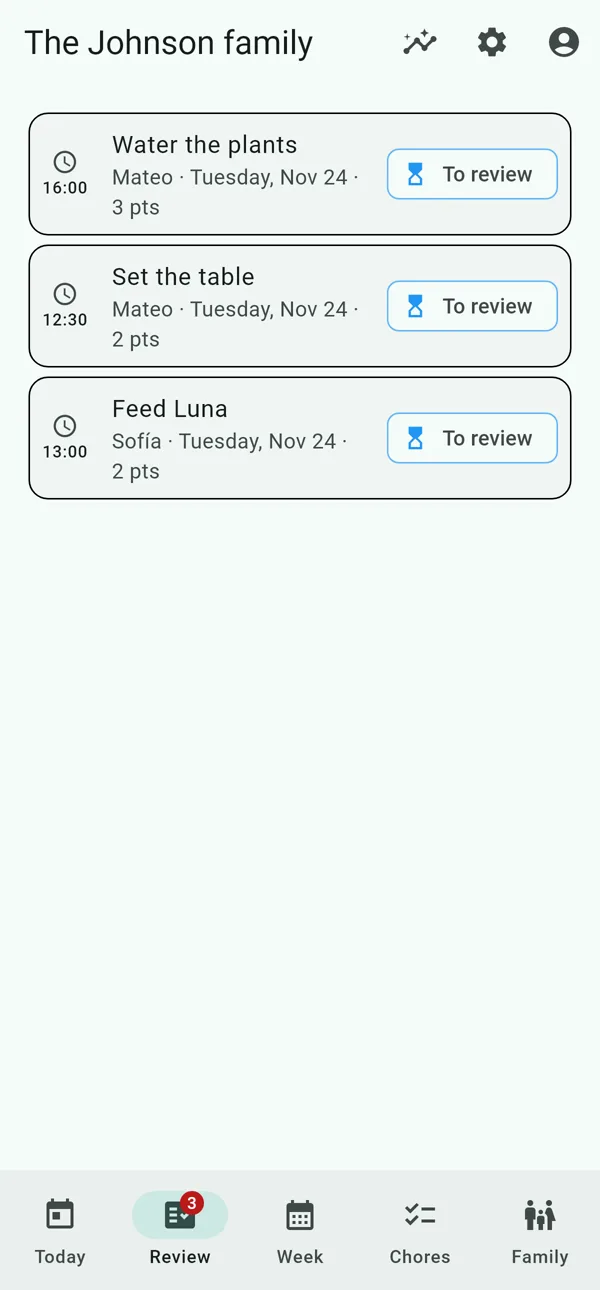
Review tab: submissions waiting for your OK.
- Tap a chore marked To review. You will see the before and after photos (or the video).
- Check the verification alerts: far from home, no GPS, fake GPS, changed clock or a suspiciously fast submission.
- Approve: pick 1, 2 or 3 ⭐ and, if you like, an encouraging sticker.
- Decline: write the reason and, on Android, draw on the photo to show what is missing.
⭐ Star calculator
1 ⭐ = 50% of the points · 2 ⭐ = 100% · 3 ⭐ = 150%
🔁Reassign and swaps
Reassign by dragging PARENTS
- In Today, press and hold a pending chore.
- Drag it onto the other kid’s card and drop it.
- Both get notified. Made a mistake? Tap Undo.
Ask a sibling to swap KIDS
- Open a pending chore (today or later) → Ask a sibling to swap.
- Choose: they do it (they get the points) or trade it for one of theirs.
- Your sibling accepts or declines in the Chore swaps card in Today.
- Mom or dad approves it (or it is approved automatically if the family turned that on).
🎁Rewards and consequences
Rewards
- Parents: Family → Rewards → create rewards with their cost in points.
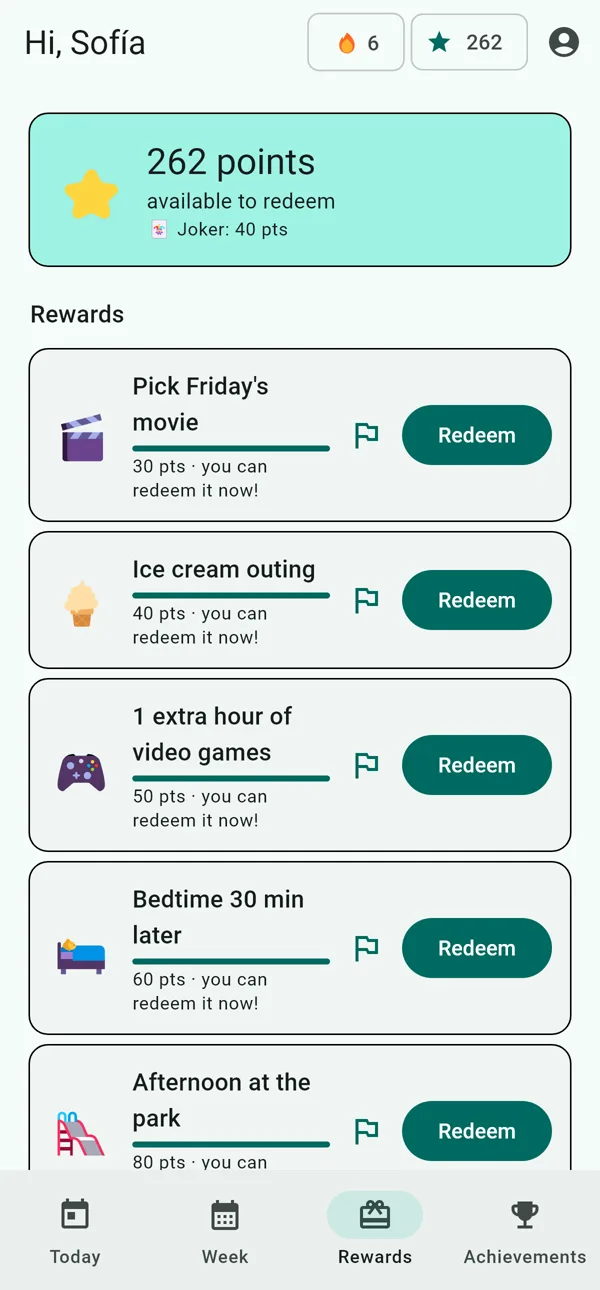
- Kids: in Rewards tap Redeem when you have enough points; your parents approve it.
- Piggy bank goal 🚩: flag a reward and see your progress and how many days it will take at your pace.
Consequences
- Take away points with a reason from Family → ⚖️ Consequences; it can be reverted.
- Optional: automatic deduction for chores not done (applied at 03:00).
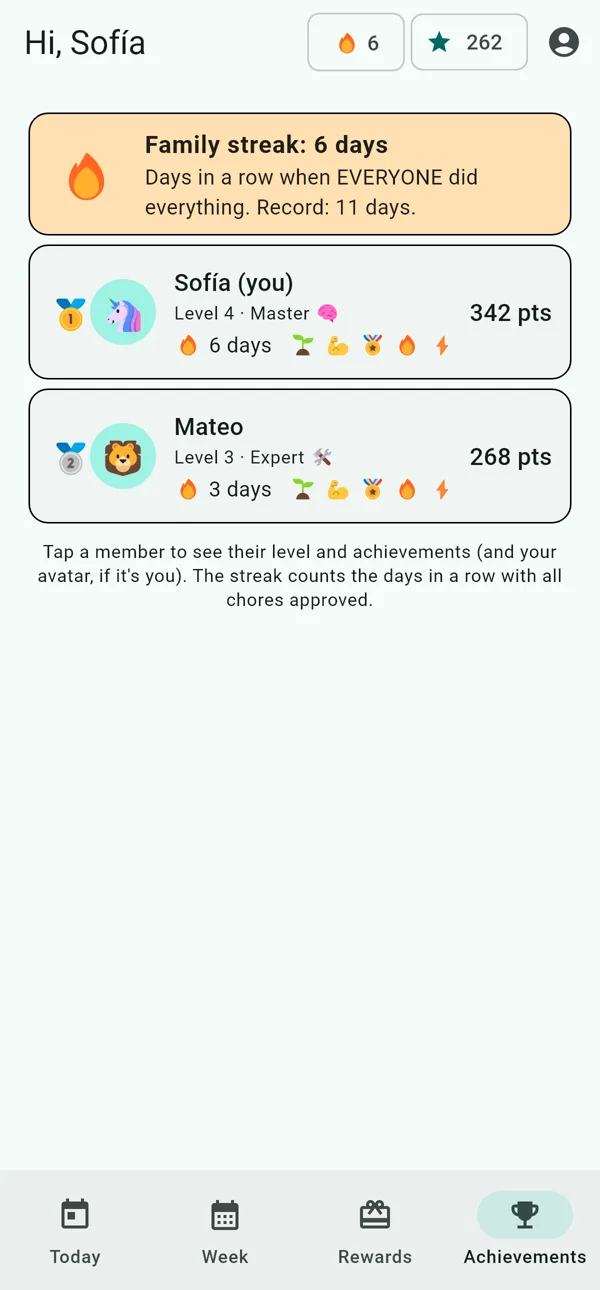
🏆Achievements, streaks and pet
⭐Extras, family goal, joker and allowance
⭐ Extra chores
🎯 Family goal
🃏 Joker
💵 Allowance
🏖️Absences, schedules and custody
🤒 “I can't today” KIDS
📆 Absences by date PARENTS
🏫 Class schedule PARENTS
🎓 School calendar, exams and holidays PARENTS
🏠 Shared custody PARENTS
✈️ Family vacations PARENTS
📊Dashboard and reports PARENTS
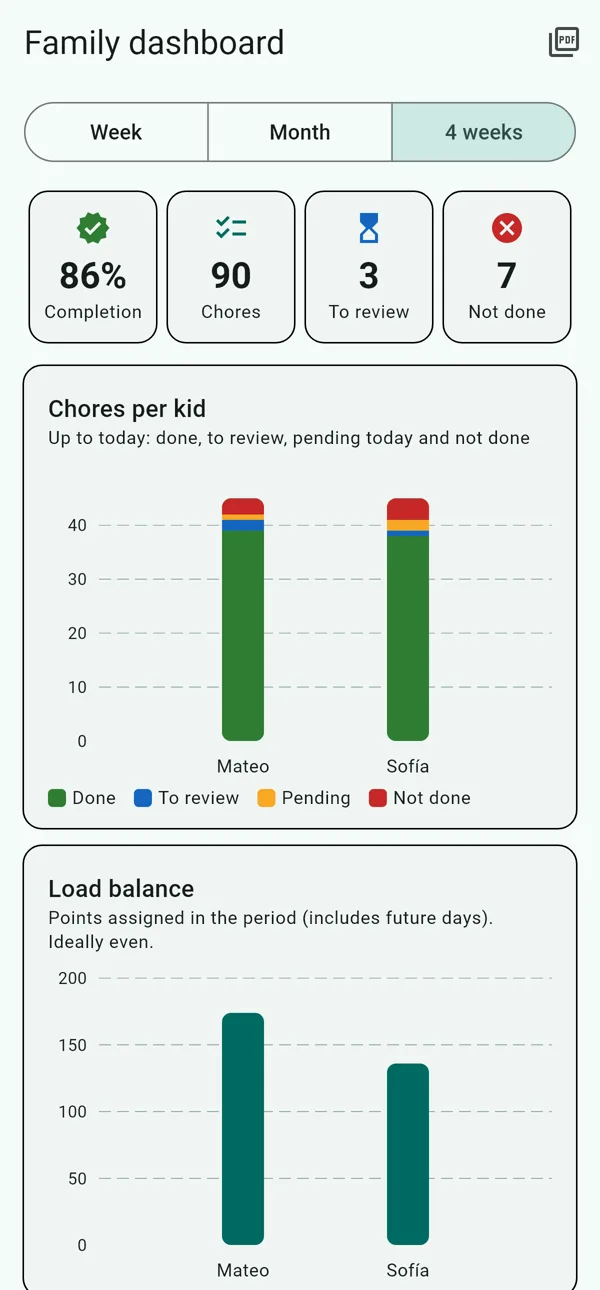
Tap the 📈 icon at the top of the parent view.
- Completion, chores, to review and not done, by week, month or 4 weeks.
- Chores per kid, load balance, trend and most forgotten chores.
- Which chore each kid does, with ⚖️ on the uneven ones.
- PDF report (PDF icon): ideally monthly, to share on WhatsApp, email or Drive.
🧾Mom and dad's to-dos PARENTS
- In Today, tap the Mom and dad's to-dos card.
- New: type the to-do (e.g. pay the electricity bill) and assign it to yourself or your partner.
- Optional: time and repeat. You will be notified at that time.
⚙️Family settings PARENTS
⚙️ icon at the top. The most important ones:
| Option | What it is for |
|---|---|
| Time zone, morning notice, reminder and draw time | When notifications arrive and when the week is drawn. |
| Home location and radius | Checking that photos were taken at home. |
| Family goal, joker, allowance, daily race | Motivation and rewards. |
| School calendar and vacations | Holidays, days off school, exams and trips. |
| Approve swaps automatically | Sibling swaps do not wait for your approval. |
| Family pet | Name and species. |
| Family board | Private link for a tablet or TV with today’s chores, no sign-in needed. |
| Connect Alexa | Code to link your Echo (see Alexa). |
| Sign out after inactivity | 7, 30 or 90 days without opening the app, or never. |
🧒Guide for kids KIDS
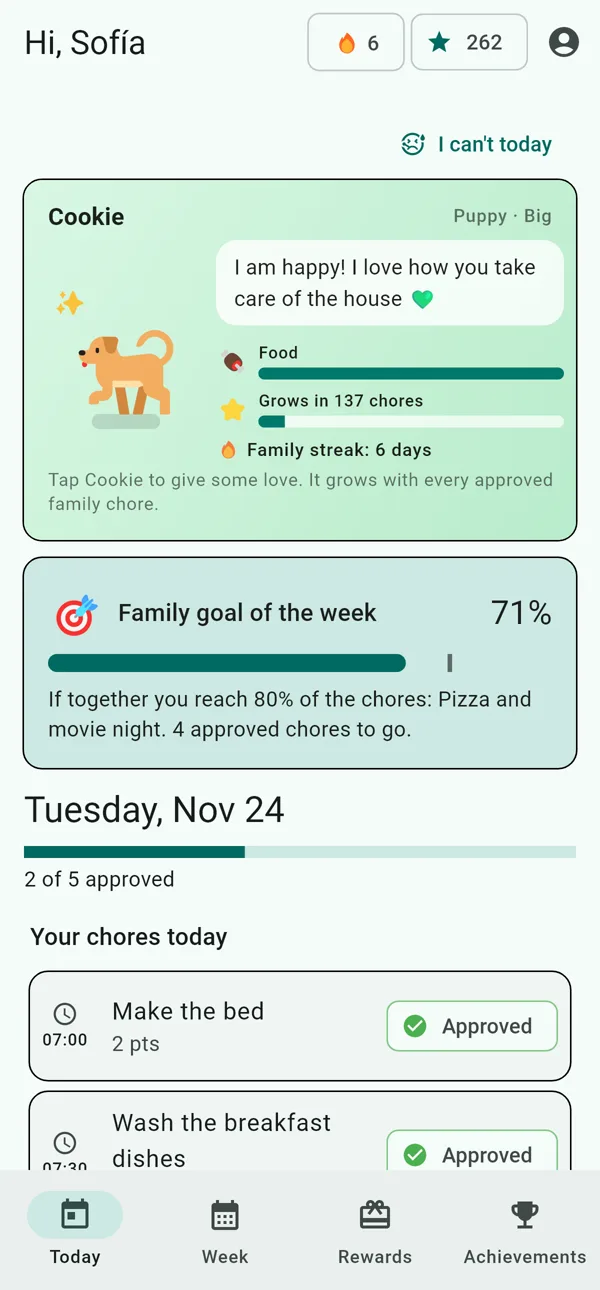
Your Today screen
- Your chores today: your chores with their time and points.
- At the top: your streak 🔥 and your points ⭐.
- The pet and the family goal: help them grow!
- Week: what you have in the coming days. Rewards and Achievements: your prizes.
📸Before and after photos KIDS
- Open the chore and tap the before photo button. Take a photo of how it looks.
- Do the chore. If it has steps, check them all.
- Tap the after photo button (or a video up to 30 s).
- Done! It is now To review and you will be notified when your parents approve it.
🔔Notifications and widgets
Android widget “Today’s chores”
- Press and hold your home screen → Widgets.
- Find Home Chores and drag it onto your screen.
- Kids see today’s chores; parents see how far along each kid is. It refreshes by itself and with the 🔄 button.
🗣️Alexa IN CERTIFICATION
The skill is under Amazon review. Once approved, you can enable it on your Echo.
Link your family
- In the app: Settings → Connect Alexa. A 6-digit code appears (valid for 10 minutes).
- Say: “Alexa, open home chores” and then “my code is 1 2 3 4 5 6”.
- Optional: “Alexa, ask home chores to turn on notifications” (yellow light with news) and “…to remind me of the chores”.
Alexa, open home choresNews and what is next for each kid.
what chores are there todayToday’s chores and their status (on Echo Show, a visual board).
show me the calendarThe week; on Echo Show, a visual calendar.
what chores does Sophia haveThat kid’s chores.
who is winningRanking and points.
add a to-do buy milkMom and dad’s to-dos.
📱iPhone and computer (web version)
- On the iPhone, open tareas.esnsoftware.com in Safari.
- Tap Share → Add to Home Screen.
- Open the app from the new icon and turn on notifications when asked (iOS 16.4 or later).
🔐Account and security
🌎 Idioma · Language
👆 Lock with fingerprint or PIN
📵 Sign out on all my devices
🗑️ Delete my account
🛡️ Privacy
⬆️Updates
- When there is a new version, you will see “New version available” when you open the app.
- Tap Update: on Android it takes you to Google Play (test or store, depending on the stage); on the web it reloads with the new version.
- If the update is required (for example, an important fix), the app will not let you continue until you update.